ClickThrough Magnifier (CTM)
A screen magnifier designed for workflows where UI elements are too small but still need to remain fully interactive.
Unlike traditional magnifier tools, CTM allows click-through interaction, DPI offset correction, and precise window placement, making it ideal for working with applications that don't support UI scaling.
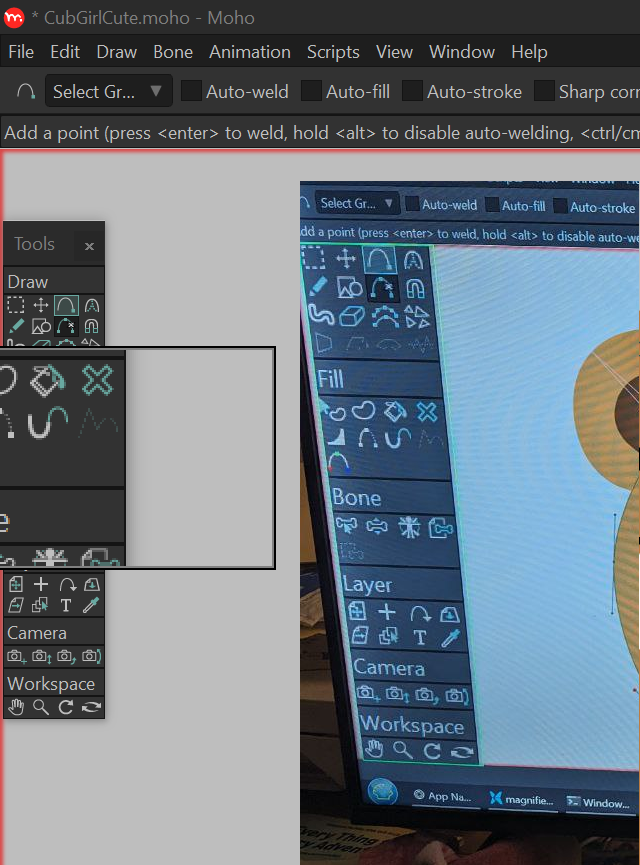
This tool was originally created to improve usability in animation software like Moho where the tools toolbar can be extremely small on high-resolution displays.
Features
Adjustable Magnification
- Resize and position the magnifier anywhere on screen
- Adjustable zoom level
DPI Offset Correction
Most magnifiers fail when used near screen edges on high-DPI displays.
Screen Magnifier allows manual adjustment of:
- Offset X
- Offset Y
This ensures the magnified content aligns correctly even with unusual DPI configurations.
Click-Through Mode
Interact directly with the application behind the magnifier.
When enabled:
- Window border turns green
- Control buttons are hidden
- Mouse clicks pass through to the underlying application (and the magnifier window disables/enables quickly)
Click Relay System
Clicks are forwarded using AutoHotkey v2, allowing seamless interaction behind the magnifier.
To ensure reliability, the app provides configurable timing controls:
- Pre-click delay
- Post-click delay
- Hide/restore delay
This ensures clicks register correctly even in applications with strict focus behavior or on older machines.
Window Controls
The magnifier window includes three built-in controls:
| Button | Function |
|---|---|
| Bottom Right | Resize / move window |
| Top Right | Minimize |
| Bottom Left | Open settings |
Additional behaviors:
- Double-click resize handle to open settings
- Settings accessible via system tray menu
Optional Control Hiding
The Minimize and Settings buttons can be disabled if you want a cleaner overlay.
System Tray Integration
Runs quietly in the background with full access from the tray menu.
Hotkeys
Hotkeys are fully configurable.
Default actions include:
- Toggle Click-Through Mode (Ctrl + 1)
- Show / Hide Magnifier (Ctrl +2)
Hotkeys can be changed from the Settings window.
Visual Indicators
| State | Border Color |
|---|---|
| Normal Mode | Blue |
| Click-Through Mode | Green |
Settings
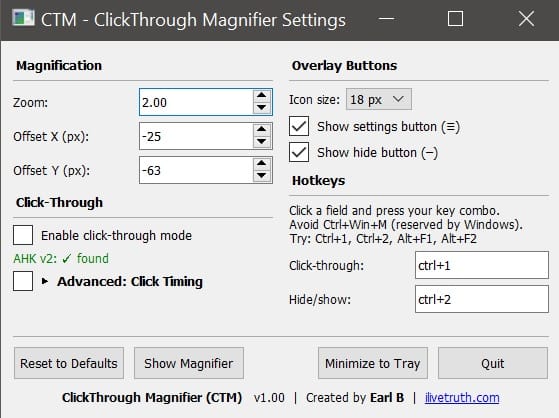
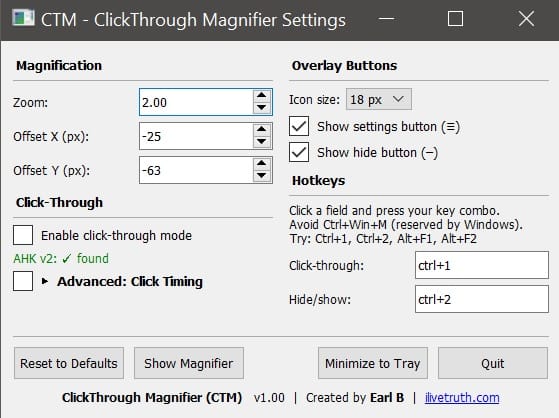
Available configuration options:
Magnification
- Zoom level
Alignment
- Offset X
- Offset Y
Interaction
- Click-through toggle
- Click timing adjustments
Interface
- Enable / disable control buttons
Hotkeys
- Toggle click-through
- Show / hide magnifier
Use Cases
Screen Magnifier is especially useful when:
- UI elements are too small but must remain clickable
- Applications do not support UI scaling
- High-DPI displays cause traditional magnifiers to misalign
- Precision clicking is required while zoomed
Typical scenarios include:
- animation tools
- graphics software
- legacy applications
- development tools
Requirements
- Python
- AutoHotkey v2 (for click relay)
Download Executable for Windows here
https://github.com/ilivetruth/ClickThrough-Magnifier/releases/tag/master
NOTE: You MUST install AutoHotKeyv2 from here or this app will not work!
https://www.autohotkey.com/v2/
Get the source code here
 ilivetruth